|
How to Use the Navigation Buttons in *IT Program Editor |
Starting with PxPlus 2026, the navigation buttons on the *IT Program Editor toolbar have been enhanced to make it easier to move efficiently between key areas of large programs.
Prior to PxPlus 2026, the toolbar included a Toggle to Previous GoTo button (marked in blue below), located to the right of the Go to button. This toggle button was initially disabled and became enabled after you accessed two locations, either by using the Go to button or double-clicking on a Statement Label in the Synopsis view. Clicking the Toggle to Previous GoTo button allowed you to switch between only two locations.
In PxPlus 2026, this functionality has been enhanced to allow multiple locations to be bookmarked. The Toggle to Previous GoTo button has been replaced by two new toolbar buttons, Previous GoTo Location and Next Goto Location (marked in red below).

These steps show you how to use the enhanced navigation buttons.
|
1. |
Launch the *IT Program Editor. This can be done by using one of the following methods: Method 1: From the IDE Main Launcher, select the Program Editor (*IT) task located near the top of the Menu list. OR Method 2: From the PxPlus Command line, enter IT. |
|
2. |
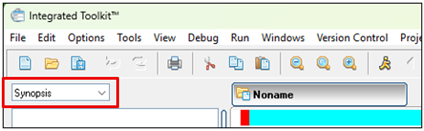
In the drop box below the toolbar, ensure that Synopsis is displayed. If not, select Synopsis from the drop-down list. The Synopsis view provides an overview of a program, including statement labels, functions, variables, and any detected errors. |
|
3. |
To begin, select a program to load. From the top menu bar, select File > Find File. |
|
4. |
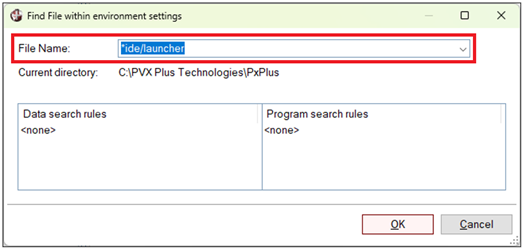
The Find File within environment settings window is displayed. In the File Name field, enter *ide/launcher. Click OK. As this program is not password protected, it opens in the program editor where it can be edited. |
|
5. |
Notice that the Previous GoTo Location and Next Goto Location buttons are initially disabled. |
|
6. |
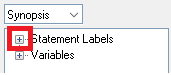
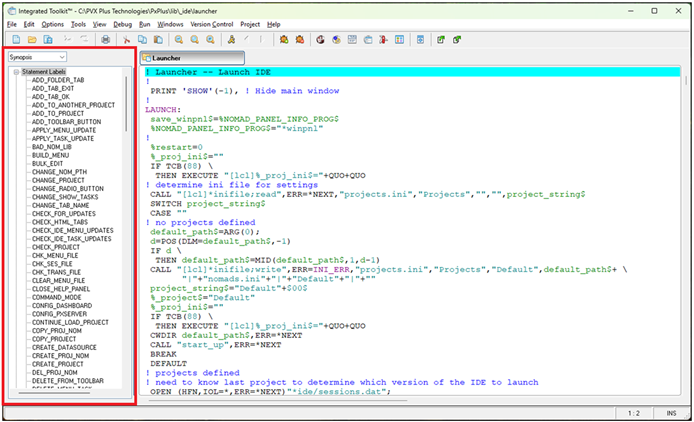
In the Synopsis view on the left side, click the plus sign beside the Statement Labels node to expand it. |
|
7. |
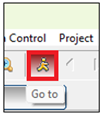
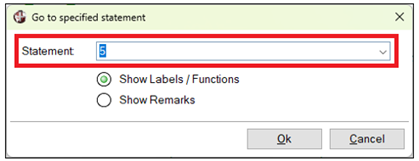
To navigate to a specific line number, click the Go to toolbar button. The Go to specified statement window is displayed. In the Statement field, enter 5 and click Ok. |
|
8. |
In the program display on the right, the program editor jumps to statement 5, which is the LAUNCH statement label. Since this is the first Go to location, the Previous GoTo Location and Next Goto Location buttons remain disabled. |
|
9. |
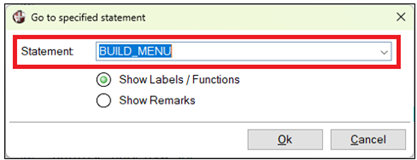
Specify a second location. Click the Go to button again. In the Statement field, enter BUILD_MENU and then click Ok. |
|
10. |
In the program display, the program editor jumps to the BUILD_MENU statement label. Since this is the second Go to location, the Previous GoTo Location button is enabled. |
|
11. |
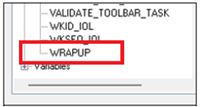
Specify a third location. In the Synopsis view on the left, use the vertical scrollbar to scroll to the bottom. Double-click on the WRAPUP statement label. |
|
12. |
In the program display on the right, the program editor jumps to the WRAPUP statement label. The navigation toolbar buttons remain unchanged. |
|
13. |
Click the Previous GoTo Location button. |
|
14. |
In the program display, the program editor returns to the BUILD_MENU statement label. The Next GoTo Location button is enabled. |
|
15. |
Click the Previous GoTo Location button again. The program editor returns to statement 5 (the LAUNCH statement label). The Previous GoTo Location button is disabled because there are no earlier locations. |
|
16. |
Click the Next GoTo Location button two times. The program editor jumps to the BUILD_MENU statement label and then to the WRAPUP statement label. Once the last location is accessed, the Next GoTo Location button is disabled. |
When multiple programs are opened in the *IT Program Editor, each program tracks the locations separately.
*IT - Integrated Toolkit
Using the Program Editor
Program Synopsis
Ed+ Program Editor