1.
Find your System ID and Class Information
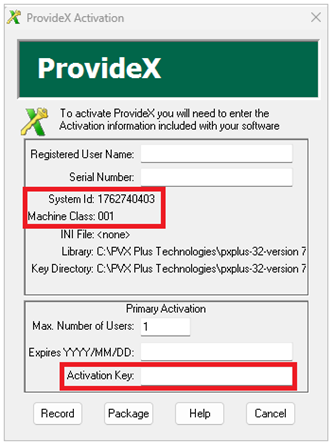
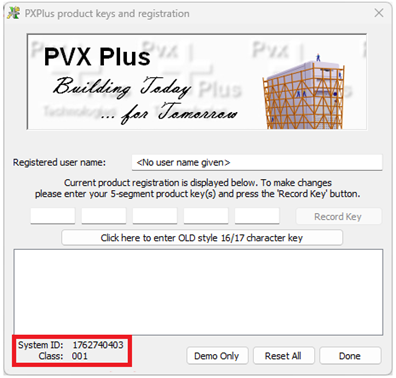
Before contacting PVX Plus Support, find your System ID and Machine Class Number.
To do this, use one of the following methods:
Open the old activation utility pvxwactv.exe in the PxPlus installation directory.
OR
Open the new activation utility pxpwactv.exe in the PxPlus installation directory (requires new 25-digit keys).
OR
From the new screen, select the option to open the old activation screen.
|
|
|
2.
Submit a Helpdesk Ticket
Submit a Helpdesk ticket to PVX Plus Support at https://helpdesk.pvxplus.com. Select the Open a New Ticket button or top menu bar option.
Enter your support request for manual activation and include the following:
- A valid email address
- Your full name
- System ID
- Machine Class Number
- Product Serial Number (Do not include license Activation Keys)
Important Note:
To help resolve your issue as quickly as possible, all requested information must be provided. Missing details will result in delays.
3.
Receive Activation Key(s) from PVX Plus
PVX Plus will generate and email your Activation Key(s) for permanent activation.
4.
Record Activation Key(s)
When you receive your permanent Activation Key(s), record the key(s) on your system by using one of the following methods (depending on the operating system):
|
Windows: |
Open the old activation utility pvxwactv.exe in the PxPlus installation directory. |
|
UNIX/Linux: |
Enter this command: pxpreg -k keyvalue (where keyvalue is the key you have been given) |
After the key is entered, click the Record Key button. Registration information appears in the white box below the key. Repeat this process if you have multiple keys.
When finished entering all the keys, click Done.
5.
Restart PxPlus
Restart PxPlus to complete the registration.