|
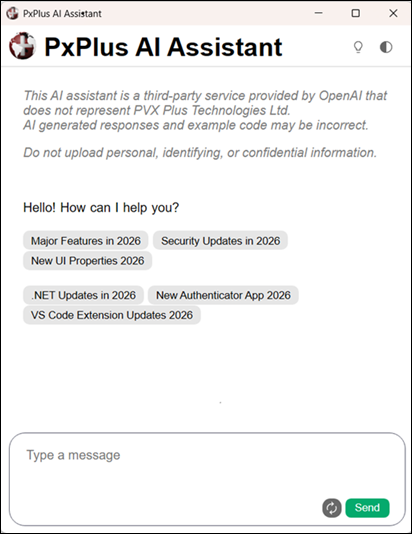
PxPlus AI Assistant |
The PxPlus AI Assistant is designed to generate meaningful and helpful responses to queries by searching and retrieving information from the PxPlus Manual, the PVX Plus Knowledge Center, and other trusted PxPlus resources. Responses may also include relevant links and additional supporting content.
Feature topics for the current release are displayed in the center of the AI Assistant window. Click a feature topic button, such as Security Updates in 2026 or .NET Updates in 2026, to view additional information about that feature.
While the AI Assistant may be capable of generating limited code examples, it is not intended to function as a code generator.
To get started, see Using the PxPlus AI Assistant.
(The PxPlus AI Assistant was added in PxPlus 2025 Update 1.)
To invoke the PxPlus AI Assistant, use one of the following methods:
|
Location |
Method |
|
From the PxPlus IDE Main Launcher |
Select AI Assistant from the PxPlus IDE category. |
|
From the PxPlus Command Line |
Enter: AI |
Type your query message in the text box provided and then click the Send button. After a few moments, the response is displayed. If the response is lengthy, a down arrow appears. Click the arrow to jump to the end of the response.
Click the Regen button (left/right circular arrows) next to the Send button to regenerate a response for the current query message. To submit a new query, enter a new message and click Send.
Click the PVX Plus globe beside the main PxPlus AI Assistant title to open the PxPlus Online Help documentation for the current release.
In the top right corner, click the Knowledge Center button (light bulb) to open the PVX Plus Knowledge Center. Click the Theme button (half-shaded circle) to toggle Dark mode On or Off in the AI Assistant window.
If the AI Assistant window is open but remains inactive for a period of time, a Disconnected for inactivity message is displayed. If this happens, click the Reconnect button that appears. Once the connection is restored, a Reconnected message is displayed, and you can continue sending messages.