|
Security Sign On |
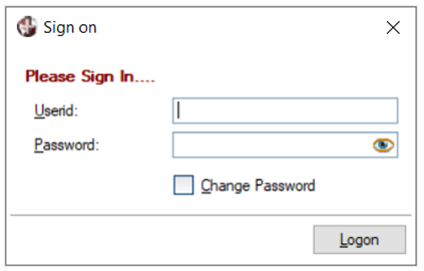
Once security is set up, a Sign on window prompts users to enter their user ID and password when they select a specific object that has access restrictions. For information on defining object security and the various locations where security can be applied, see Restricting Access.
If Two-Factor Authentication (2FA) is set up, users who are required to verify their identity (based on settings in User Maintenance) must enter their user ID and password, followed by a randomly generated six-digit security code sent via email, SMS text message, or an authenticator app.
See Login Process with Two-Factor Authentication for an outline of the key steps for logging in using Two-Factor Authentication (2FA).
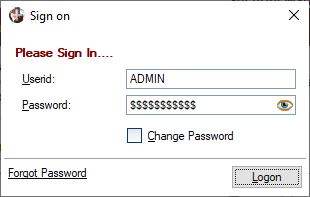
This window consists of the following:
|
Userid |
Unique name for identifying a user (not case sensitive). Important Note: |
|
Password |
Password used to log on to the system (case sensitive). To check that the password is entered correctly, click the Password eye button to toggle between displaying an encrypted and unencrypted password. Each new user is initially assigned a default password that is the same as the user ID. For example, if the user ID is SMITH, the default password is SMITH (case sensitive). To maintain system security, this default password should be changed as soon as possible by using the Password Change window. (The Password toggle button was added in PxPlus 2023.) |
|
Change Password |
Selecting this option invokes the Password Change window when the Logon button is clicked. (By default, this check box is not selected.) |
|
Logon |
Button used to access the system. If the log in is unsuccessful after three consecutive attempts, a message will display. In that case, the user must exit and try logging in again. |
When Two-Factor Authentication (2FA) is set up, the Two-Factor Verification window displays when a user is required to verify their identity prior to login. This window instructs the user to enter the security code sent to his/her email address or SMS phone number or generated by an authenticator app (based on settings in User Maintenance).
The example below indicates that a security code was sent to the user's email address. The user entered the six-digit security code and must click the Verify button to complete authentication. A similar message displays when the authentication method is an SMS text message or an authenticator app.
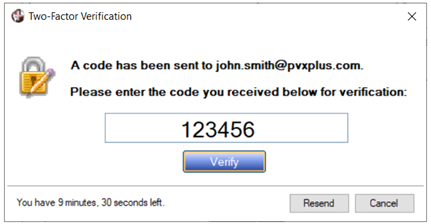
This window consists of the following:
|
(Passcode input field) |
Input field for entering the six-digit security code sent to the user. |
|
Verify |
(Available when security code is entered) Confirms that the security code entered matches the code sent to the user to validate his/her identity. The user is allowed 10 minutes to enter the correct code. The time remaining is shown on the bottom. |
|
Resend |
Sends a new security code to the user, which the user must enter for verification. The new code replaces the code previously sent. |
|
Cancel |
Stops the verification process. The user is not allowed to log on. |
If more than one authentication method is specified for a user, the Device Authentication Required window displays with only those options enabled. The user chooses the method to use for verification.
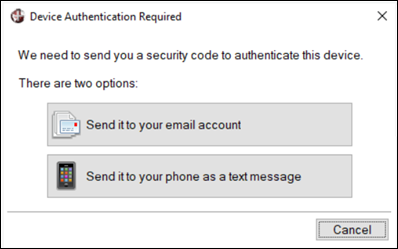
The example below shows two authentication options enabled, which correspond with the verified methods on file for this user.
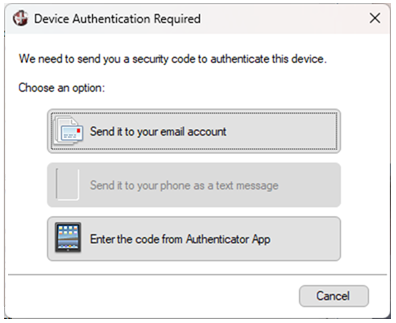
This window consists of the following:
|
Send it to your email account |
Security code will be sent via email to the user's email address in User Maintenance. |
|
Send it to your phone as a text message |
Security code will be sent via SMS text message to the user's SMS phone number in User Maintenance. |
|
Enter the code from Authenticator App |
Security code will be generated by the authenticator app set up in User Maintenance. (The ability to integrate to a third-party authenticator app was added in PxPlus 2026.) |
|
Cancel |
Stops the verification process. User is not allowed to log on. |
The Password Change window allows users to change their password. This window displays automatically when users are logging on to the system for the first time using their default password. After their initial logon, users can change their password at any time by selecting the Change Password check box in the Sign on window prior to clicking the Logon button.
This window consists of the following:
|
New Password |
Enter the new password. To check that the password is entered correctly, click the eye button to toggle between displaying an encrypted and unencrypted password. |
|
Confirm Password |
Enter the new password again. Must match the New Password entry. To check that the password is entered correctly, click the eye button to toggle between displaying an encrypted and unencrypted password. |
|
Update |
Button that is used to create the valid password and update the NOMADS user registration file. |
When Two-Factor Authentication (2FA) is set up, if a user enters an incorrect password during system logon and has a valid email address, SMS phone number and/or authenticator app on file, the system will display a Forgot Password option in the Sign on window:
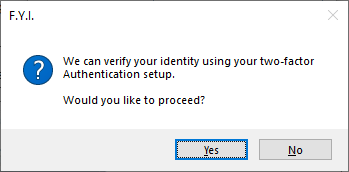
Selecting this option allows the system to re-authenticate the user for the purpose of resetting his/her password by displaying the following message:
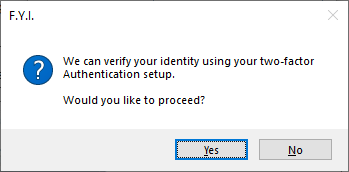
If the user responds Yes, the system proceeds to verify the user's identity by sending a security code to the user. If the verification is successful, the Password Change window displays to allow the user to create a new password.
If the user responds No, no identity verification is done, and the user is returned to the Sign on window.