Security Manager
|
Two-Factor Authentication Setup | |
Two-Factor Authentication (2FA) increases system security by requiring users to verify their identity using a second method in addition to their user ID and password when logging into the system.
When Two-Factor Authentication is set up and a user is logging on, a randomly generated six-digit security code is sent to the user via email, text message or an authenticator app to confirm authorization. See
Security Sign On.
(Two-Factor Authentication Setup was added in PxPlus 2023.)
(The ability to integrate to a third-party authenticator app was added in PxPlus 2026.)
To set up Two-Factor Authentication (2FA), click the Two-Factor Authentication Setup button in
User Maintenance. This button is available only to users with the ADMIN classification.
The Setup Two-Factor Authentication window is displayed (shown below with a sample entry):
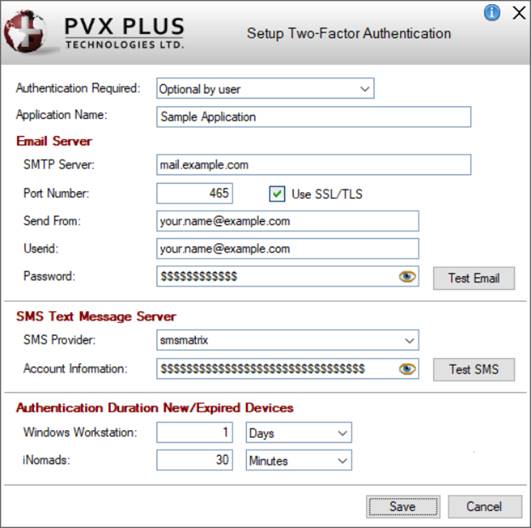
This window consists of the following:
|
Authentication Required |
This option controls whether Two-Factor Authentication will be set up or disabled on the system. Click the drop-down arrow for a list of selections:
|
Disabled |
(Default) Two-Factor Authentication is not set up. |
|
Optional by user |
Two-Factor Authentication is determined on a user-by-user basis, depending on the
Verify drop box selection in User Maintenance. |
|
Mandatory |
Two-Factor Authentication is required for all users.
All users must provide the necessary information for the chosen authentication methods, such as a verified email address, an SMS-compatible phone number, or a registered authenticator app, before they are allowed to log on. | |
|
Application Name |
Enter the application name that will be used in verification emails and/or text messages sent to users. |
|
Email Server |
Define the email server that will be used to validate the user:
|
SMTP Server |
Internet address of the email server to use to send out email verification requests. |
|
Port Number |
Port number to use to connect to the email server. Generally, this will be 465 for a secure connection or 587 for a START TLS connection. (Default: 465) |
|
Use SSL/TLS |
Indicates if you want to connect to the email server securely, thereby encrypting all communications between your system and the server. (Defaults to On - Recommended) |
|
Send From |
Email address that you want the system to use as the "From" address in any emails that are sent. |
|
Userid |
User ID that is needed to sign on to the email server. Generally, this will be the same as the Send From email address. (Defaults to the Send From address) |
|
Password |
Password associated with the User ID. It will be saved in an encrypted format in the system control file to minimize the potential of it being exposed.
Click the Password eye button to toggle between displaying an encrypted and unencrypted password. This is useful for checking that the password is entered correctly. |
|
Test Email |
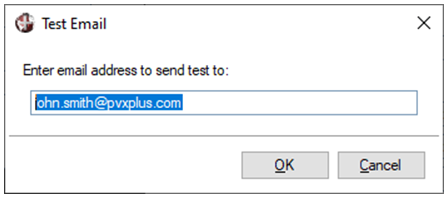
Button that invokes the Test Email window for entering an email address to send a test email to (defaults to the Send From email address). It is strongly recommended to use this button to ensure the settings are correct before saving:
 | |
|
SMS Text Message Server |
Define the SMS server that will be used to validate the user:
|
SMS Provider |
Service provider that will be used to issue your SMS messages. Important Note:
You must first set up an account with any service provider you choose from the list of providers on the
*TOOLS/SMS Help page. |
|
Account Information |
Account information as required by the selected service provider. Important Note:
See the
*TOOLS/SMS Help page for details on the format of this field when entering account information, as this varies based on the service provider chosen. |
|
Test SMS |
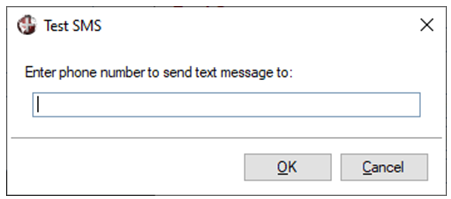
Button that invokes the Test SMS window for entering a phone number to send a test SMS message to. It is strongly recommended to use this button to ensure the settings are correct before saving:
 | |
|
Authenticator App |
Selecting the Enable check box enables the Authenticator App Setup button in
User Maintenance. This button is used for setting up a third-party authenticator app for Two-Factor Authentication.
(The ability to integrate to a third-party authenticator app was added in PxPlus 2026.) |
|
Authentication Duration New/Expired Devices |
Note:
Applies only to users with the
Verify option in User Maintenance set to On new/expired device.
When a user is authenticated, the system can be set to defer future authentication requests for a period of time (Minutes, Hours or Days), depending on the device the user used. This can range from 0 minutes (forces re-authentication ever time the user logs on) to 99999 days (effectively never ask again).
The period chosen can be different when the user is on a Desktop system (using NOMADS) or a Web Browser (using iNomads). |
|
Save |
Saves the settings and closes the Setup Two-Factor Authentication window. |
|
Cancel |
Closes the Setup Two-Factor Authentication window without saving changes. |
See Also
User Maintenance
Restricting Access
Security Sign On