|
Getting Started |
|
This page outlines the supported operating systems, explains the information included in your product activation email, and provides an overview of the key steps in the download, installation and activation process.
This information should be reviewed first to help ensure a smooth installation and prepare you for the steps that follow. It should be reviewed by system administrators responsible for installing and maintaining PxPlus, as well as by application developers who use PxPlus to build or integrate their applications.
PxPlus is a feature-rich development language designed to run on all major operating systems:
Windows:
32-bit
64-bit
Unix or Unix-like Systems:
MacOS
AIX
Linux Systems:
Debian
Redhat
SUSE
Ubuntu
To find out which versions of these operating systems are supported, follow these steps:
|
1. |
Refer to the Downloads page on the PVX Plus website. |
|
2. |
Scroll to the Download Center section where you will find a list of recent PxPlus versions. |
|
3. |
Click one of the listed versions to view the details for that update. |
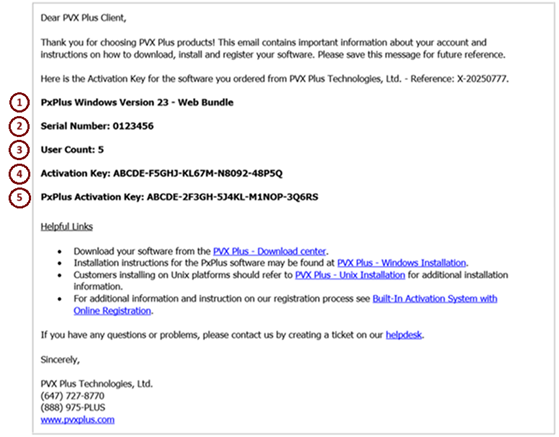
When you purchase a product from PVX Plus Technologies, you receive an email containing activation information for your product.
Example:
The activation details in this email are explained below:
|
# |
Shown in Email Example |
Description |
|
|
PxPlus Windows Version 23 - Web Bundle |
Name of the PVX Plus product and version. |
|
|
Serial Number: 0123456 |
Unique identifier that links the license to activation keys, updates, and support eligibility. |
|
|
User Count: 5 |
Number of users permitted under the license. |
|
|
Activation Key: ABCDE-F5GHJ-KL67M-N8092-48P5Q |
A 25-character product key entered during PxPlus installation that activates PxPlus for 30 days once installation is complete. |
|
|
PxPlus Activation Key: ABCDE-2F3GH-5J4KL-M1NOP-3Q6RS |
A 25-character product key for PxPlus extensions and add-ons. |
This table presents an overview of the key steps in the download, installation and activation of PxPlus. Review these steps to familiarize yourself with the overall process.
|
1. |
Download and install PxPlus for your operating system Details are provided on the following pages:
Download and Installation (Windows) |
|
2. |
Start using PxPlus during the temporary activation period Your new PxPlus installation includes a Temporary 30-day activation. Before the 30 days ends, you must register your product with PVX Plus and enable Permanent activation. Warning messages begin appearing 7 days before the temporary activation expires. For information on starting PxPlus, see Launching PxPlus. |
|
3. |
Register PxPlus online Register PxPlus online. Your system must be connected to the internet. See Online Registration. On Windows, a quick and easy way to register is to double click the Register desktop shortcut created after installation. For more information, see Windows Installation. |
|
4. |
Request manual activation (only if necessary) If you are unable to register PxPlus online (i.e. your system is not connected to the internet or online registration is not available), submit a Helpdesk ticket to PVX Plus Support to request manual activation. For steps, see Manual Activation. An administrative fee may apply for licenses not enrolled in the Continuous Care Program (CCP) and for unsupported versions. |
|
5. |
Customize PxPlus You can optionally customize your PxPlus environment to suit your development and application needs. See Customizing PxPlus. |
Licenses and Modes of Activation


